If you're in San Francisco this Wednesday, July 23, join us for a great seaside party. We're sponsoring a Web Analytics Wednesday at the Gordon Biersch Brewery (map), right next to Google's San Francisco office, with beautiful views of the bay and the Bay Bridge. This free monthly networking event is for anyone in the web analytics community: practitioners, consultants, vendors, upstarts and any curious onlookers. So if you have the time, come join us and have a few snacks and drinks.
When you arrive, look for signs pointing to our private room upstairs. Parking will be limited due to a Giants home game, but the brewery is right on the N/T streetcar line. So we can plan accordingly, please RSVP here if you're coming. Here are details:
Date: Wednesday, July 23, 2008, 6:00 - 8:00 p.m.
Venue: Gordon Biersch, second floor
Address: 2 Harrison St, San Francisco CA
RSVP
Senin, 21 Juli 2008

Kamis, 17 Juli 2008
Practitioner Post: Adwords Auto-Tagging and URL Redirects
Recently, I watched all 5 seasons of Angel on DVD, and now I'm watching all 7 seasons of Buffy the Vampire Slayer. (I realize that I'm going backwards, but I just had to know Angel's back story.) If you've watched the shows, you know that the character Angel starts off as one thing and ends up as something completely different.
URL redirects are like Angel in this respect; they start off as one thing and end up as something else. In the process, Adwords auto-tagging (the "gclid") frequently gets "slain". Let's look at how we can address the resulting reporting problems.
First, a quick review of the back story.
Adwords auto-tagging makes it possible for you to see Adwords information in your Google Analytics reports without manually tagging each keyword. You simply enable auto-tagging in your Adwords account. The auto-tagging option is located on the My Account tab, on the Account Preferences page (click image to enlarge):

If you select this option, Adwords automatically appends a "gclid" parameter to your destination URLs:
If you already have query parameters in your URL, it will look something like this:
www.example.com/?param=a&gclid=123xyz
(Note that in the first example, "gclid" is preceded by a "?" and in the second example, it is preceded by a "&". Remember this distinction because it will be important later on.)
What if you're also using a third-party tracking system such as DoubleClick, or your destination URL redirects to a second or even third URL before Adwords users arrive on your site? Will the gclid be retained or get slain?
That depends on the tracking system or behavior of your redirects. This is a very important question to address before you enable auto-tagging.
Some redirects strip the gclid. While Google Analytics still records the visit and the subsequent user activity, it doesn't have the information necessary to properly attribute the visit to your Google ad. As a result, some of this traffic will be included in the "direct" category while other visits may show up as "not set". Furthermore, your Adwords Campaigns report in Google Analytics may show cost metrics, but your visits columns may show zeros (click image to enlarge):
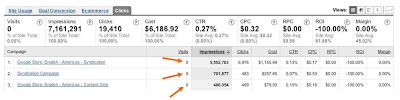
Ugh! Can you prevent this from happening?
Absolutely! Performing a simple test before you enable auto-tagging will ensure that you receive valuable information on your Google campaign performance. Here are the steps for two URL scenarios:
Scenario 1
If your destination URL has no query parameters and looks something like this: www.i_will_redirect_you.com/:
If your destination URL already has query parameters and looks something like this: www.i_will_redirect_you.com/?param=a¶m2=b:
Suggestion 1. Ask your friendly admins or third-party contact to please configure their servers to pass the gclid. If you're not sure what this means, don't worry, your server admin does. It's like repeating something in a foreign language you don't speak. If your pronunciation is good, a native speaker will understand you and all will be perfecto!
Suggestion 2. If suggestion 1 isn't possible, you'll need to manually tag your destination URLs instead of enabling auto-tagging. (This is one of the very few circumstances in which you should manually tag destination URLs in AdWords.)
The best way to get started with manual tagging is to use the online URL Builder. You'll need to fill in your landing page URL and fill in the campaign name, source, medium, and term (keyword). Then, press "Generate URL" and you'll have a URL that will correctly report campaign information to Google Analytics.
You probably already know how to use this tool based on an earlier post we made, but here is an example followed by step-by-step instructions on a recommended way to use i:
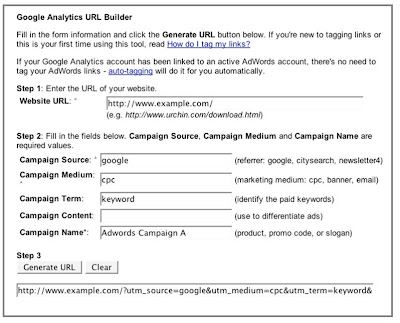
Step 1. Put the final landing page URL in the Website URL field. The reasoning behind this is that since the gclid is stripped by the redirects, the manual tags will most likely be stripped as well. In our example above, www.example.com is the URL to which Adwords users are redirected.
Step 2. Fill in each of the additional fields as follows:
When you generate the URL, you will end up with something like this, personalized with your keyword and campaign, etc.:
Once a person clicks on an ad and finishes her journey through the land of redirects, she'll see the URL above in their address bar. Also, in the case of third-party redirects, this is the URL you'll want to send to your vendor to convert into tracking tags.
If you're running a campaign with many keywords, here's a helpful tip: Only use the URL Builder for the first URL. Then, use Excel's handy "concatenation" function to create an Excel worksheet that generates the rest automatically.
Even if your campaigns are free of redirects, it's still a good idea to test for auto-tagging compatibility before enabling it. You may still need to have that cryptic conversation with your server admins about "configuring the server to pass the gclid." In any case, never use auto-tagging and manual tagging in the same Adwords account. Even though your users won't be affected, your Google Analytics reports will not be accurate and you'll spend more time trying to make sense of the numbers than optimizing your Google campaigns.
As always, happy tracking! And now back to Buffy…
URL redirects are like Angel in this respect; they start off as one thing and end up as something else. In the process, Adwords auto-tagging (the "gclid") frequently gets "slain". Let's look at how we can address the resulting reporting problems.
First, a quick review of the back story.
Adwords auto-tagging makes it possible for you to see Adwords information in your Google Analytics reports without manually tagging each keyword. You simply enable auto-tagging in your Adwords account. The auto-tagging option is located on the My Account tab, on the Account Preferences page (click image to enlarge):

If you select this option, Adwords automatically appends a "gclid" parameter to your destination URLs:
www.example.com/?gclid=123xyz
If you already have query parameters in your URL, it will look something like this:
www.example.com/?param=a&gclid=123xyz
(Note that in the first example, "gclid" is preceded by a "?" and in the second example, it is preceded by a "&". Remember this distinction because it will be important later on.)
What if you're also using a third-party tracking system such as DoubleClick, or your destination URL redirects to a second or even third URL before Adwords users arrive on your site? Will the gclid be retained or get slain?
That depends on the tracking system or behavior of your redirects. This is a very important question to address before you enable auto-tagging.
Some redirects strip the gclid. While Google Analytics still records the visit and the subsequent user activity, it doesn't have the information necessary to properly attribute the visit to your Google ad. As a result, some of this traffic will be included in the "direct" category while other visits may show up as "not set". Furthermore, your Adwords Campaigns report in Google Analytics may show cost metrics, but your visits columns may show zeros (click image to enlarge):

Ugh! Can you prevent this from happening?
Absolutely! Performing a simple test before you enable auto-tagging will ensure that you receive valuable information on your Google campaign performance. Here are the steps for two URL scenarios:
Scenario 1
If your destination URL has no query parameters and looks something like this: www.i_will_redirect_you.com/:
- Paste this URL in your browser's address bar, but before you press Enter, append "?gclid=test" to the end, like this: www.i_will_redirect_you.com/?gclid=test.
- Now press Enter.
- If the gclid is present on the final landing page URL, you're golden. If not, keep reading to learn about your alternatives.
If your destination URL already has query parameters and looks something like this: www.i_will_redirect_you.com/?param=a¶m2=b:
- Paste this URL in your browser's address bar and before pressing Enter, append "&gclid=test" to the end, like this: www.i_will_redirect_you.com/?param=a¶m2=b&gclid=test.
(This is why the "?" and the "&" distinction were important to note earlier. It's a matter of URL syntax. Luckily, auto-tagging knows the difference.) - Press Enter.
- If the gclid is still there, you're in good shape, and need only to enable auto-tagging. If not, what are your options? Read on.
Suggestion 1. Ask your friendly admins or third-party contact to please configure their servers to pass the gclid. If you're not sure what this means, don't worry, your server admin does. It's like repeating something in a foreign language you don't speak. If your pronunciation is good, a native speaker will understand you and all will be perfecto!
Suggestion 2. If suggestion 1 isn't possible, you'll need to manually tag your destination URLs instead of enabling auto-tagging. (This is one of the very few circumstances in which you should manually tag destination URLs in AdWords.)
The best way to get started with manual tagging is to use the online URL Builder. You'll need to fill in your landing page URL and fill in the campaign name, source, medium, and term (keyword). Then, press "Generate URL" and you'll have a URL that will correctly report campaign information to Google Analytics.
You probably already know how to use this tool based on an earlier post we made, but here is an example followed by step-by-step instructions on a recommended way to use i:

Step 1. Put the final landing page URL in the Website URL field. The reasoning behind this is that since the gclid is stripped by the redirects, the manual tags will most likely be stripped as well. In our example above, www.example.com is the URL to which Adwords users are redirected.
Step 2. Fill in each of the additional fields as follows:
- Campaign Source: "google" in lower case
- Campaign Medium: "cpc" for cost-per-click campaigns or "cpm" for our cost-per-impression campaign model
- Campaign Term: fill in your AdWords keyword
- Campaign Content: if tagging your keywords individually, leave this field BLANK. If you're only tracking Google ad unit performance, as in the case of running a campaign that is running exclusively on our content network, fill in an ad unit identifier, such as a text ad's headline or the name you've given your display ads.
- Campaign Name: this is the name of the campaign you've set up in the Google ad system. Assuming you've linked your Google Analytics and Adwords accounts, it is important to type in the campaign name exactly as it appears in our ad system. Otherwise, the Clicks tab of the Adwords Campaigns report in Google Analytics will have multiple entries for the same campaign. Cost information such as impressions and clicks will be listed next to the campaigns that are running in our ad system, while visit information will be listed next to the campaign names you've typed into the URL Builder, and that would just be confusing!
When you generate the URL, you will end up with something like this, personalized with your keyword and campaign, etc.:
http://www.example.com/?utm_source=google&utm_medium=cpc&utm_term=keyword&utm_campaign=Adwords%2BCampaign%2BA
Once a person clicks on an ad and finishes her journey through the land of redirects, she'll see the URL above in their address bar. Also, in the case of third-party redirects, this is the URL you'll want to send to your vendor to convert into tracking tags.
If you're running a campaign with many keywords, here's a helpful tip: Only use the URL Builder for the first URL. Then, use Excel's handy "concatenation" function to create an Excel worksheet that generates the rest automatically.
Even if your campaigns are free of redirects, it's still a good idea to test for auto-tagging compatibility before enabling it. You may still need to have that cryptic conversation with your server admins about "configuring the server to pass the gclid." In any case, never use auto-tagging and manual tagging in the same Adwords account. Even though your users won't be affected, your Google Analytics reports will not be accurate and you'll spend more time trying to make sense of the numbers than optimizing your Google campaigns.
As always, happy tracking! And now back to Buffy…
Kamis, 10 Juli 2008
Seminars For Success coming to Portland and San Diego
Since we launched Google Analytics Seminars for Success, we've been getting requests for more seminars in more cities (though still waiting to hear from you, Honolulu :-).
So here's a quick heads up about a few upcoming seminars:
July 23 & 24: Portland, OR
August 11 & 12: San Diego, CA
For more details and to sign up, click the cities above or visit the seminars page where you'll see a list of upcoming seminars for both AdWords and Google Analytics.
As a refresher, these are live, single day courses designed to educate you on how to get the best usage out of Google's free Analytics solution, and most importantly, how to use it. There are two tracks: an introduction and user training seminar, and an advanced technical implementation seminar.
Don't know which course is for you?
Surveys from prior sessions have shown that the Intro and Advanced sessions have been most beneficial for folks who wear the following hats in their company:
Intro session - agenda
Executives/decision makers - learn about why web analytics is important and which reports to look at to analyze your site traffic or campaigns.
Marketers/web analysts - improve your skills in high level Google Analytics report analysis to make smarter, metrics-based decisions.
Advanced session - agenda
Site developers/web engineers/Analysts - get in depth instruction on things like setup, advanced usage and troubleshooting.
Those of you who wear multiple hats might want to attend both sessions.
So here's a quick heads up about a few upcoming seminars:
July 23 & 24: Portland, OR
August 11 & 12: San Diego, CA
For more details and to sign up, click the cities above or visit the seminars page where you'll see a list of upcoming seminars for both AdWords and Google Analytics.
As a refresher, these are live, single day courses designed to educate you on how to get the best usage out of Google's free Analytics solution, and most importantly, how to use it. There are two tracks: an introduction and user training seminar, and an advanced technical implementation seminar.
Don't know which course is for you?
Surveys from prior sessions have shown that the Intro and Advanced sessions have been most beneficial for folks who wear the following hats in their company:
Intro session - agenda
Executives/decision makers - learn about why web analytics is important and which reports to look at to analyze your site traffic or campaigns.
Marketers/web analysts - improve your skills in high level Google Analytics report analysis to make smarter, metrics-based decisions.
Advanced session - agenda
Site developers/web engineers/Analysts - get in depth instruction on things like setup, advanced usage and troubleshooting.
Those of you who wear multiple hats might want to attend both sessions.
Senin, 07 Juli 2008
Reminder: Trifecta Webinar Tomorrow
Just a quick reminder about tomorrow's free Google webinar, which we mentioned in more detail in a post last week. It's not too late to sign up:
TITLE: The Google Trifecta: Webmaster Tools, Analytics, Website Optimizer
DATE: Tuesday, July 8th, 2008
TIME: 9:00 - 10:00 am PT (Pacific Time)
JOIN US: Register to attend (free)
Get firsthand exposure to Webmaster Tools, Google Analytics and Website Optimizer from Googlers who work on them. We'll talk about each tool individually and also discuss how you can use them together to improve your SEO, SEM and website conversion efforts.
TITLE: The Google Trifecta: Webmaster Tools, Analytics, Website Optimizer
DATE: Tuesday, July 8th, 2008
TIME: 9:00 - 10:00 am PT (Pacific Time)
JOIN US: Register to attend (free)
Get firsthand exposure to Webmaster Tools, Google Analytics and Website Optimizer from Googlers who work on them. We'll talk about each tool individually and also discuss how you can use them together to improve your SEO, SEM and website conversion efforts.
Kamis, 03 Juli 2008
Google Analytics and Ad Planner
Since the announcements of Google Trends for Websites and Google Ad Planner last week, we've gotten lots of interest from agencies and advertisers excited about the opportunity to expand their media plans to sites that they might have overlooked before. But we've also noticed some confusion as to how Google Analytics data might be used in those products, and we'd like to clear that up.
Google Analytics doesn't share individual, site-level information with Google Trends for Websites or Google Ad Planner. These products gather data from multiple sources, then check the data against anonymous, aggregate, industry benchmarking data within Google Analytics. This helps Google Trends for Websites and Google Ad Planner calibrate category data and correct for under- or over-reporting in certain verticals. The benchmarking data comes from Google Analytics customers who've chosen to share their data in aggregate (see our earlier blog post).
Your data confidentiality is important to us, and we're committed to preserving your trust in us.
You can check out Google Trends for Websites for yourself here or sign up for the Google Ad Planner beta here. More information is available on the Trends for Websites Help page and on the Google Ad Planner Help Center.
Google Analytics doesn't share individual, site-level information with Google Trends for Websites or Google Ad Planner. These products gather data from multiple sources, then check the data against anonymous, aggregate, industry benchmarking data within Google Analytics. This helps Google Trends for Websites and Google Ad Planner calibrate category data and correct for under- or over-reporting in certain verticals. The benchmarking data comes from Google Analytics customers who've chosen to share their data in aggregate (see our earlier blog post).
Your data confidentiality is important to us, and we're committed to preserving your trust in us.
You can check out Google Trends for Websites for yourself here or sign up for the Google Ad Planner beta here. More information is available on the Trends for Websites Help page and on the Google Ad Planner Help Center.
Jumat, 27 Juni 2008
Come See The Big Three
Faithful Analytics blog readers, I don't want to bore or alienate any of you—a diverse and geographically disperse group of intelligentsia—but today's blog post draws on something close to my heart: a professional basketball team called the Boston Celtics. Stay with me, just for a few more sentences. All will become clear ...
About a week ago, the Celtics won the National Basketball Association championship over their biggest rival, the Lakers (sorry, Lakers fans). As I say when something like this happens, "Whoo-hooot!!!"
Ahem. Anyway, the reason the Celts won is that this season their management united three of the best players in the NBA: Kevin Garnett, Paul Pierce, and Ray Allen. These players strove for years to win the title on separate teams, playing with less talented players, and finally, when they joined forces, everything fell into place.
How does this trifecta relate to web analytics, online marketing, and website management, the topics closest to our heart? Well, we've also got a big three for you, dear reader. And they're taking the stage July 8 in a one-hour webinar, presented by our team, called, "The Google Trifecta."
Who are our big three? You might be able to guess: one of them is Google Analytics, so you can start getting your "Whoo-hooot!" ready. Rounding it out are Webmaster Tools and Website Optimizer, two other free Google tools for website-owners. The first helps you improve your site's visibility in Google search results, and the second helps increase your conversion rate once visitors arrive on your site.
Individually each tool is powerful; combined, they offer you a holistic, detailed understanding of your website: how you're faring on Google, how your visitors land on and navigate to your site, and which combination of content most effectively gets them to convert. If you're already using one tool, you can use your same login for the others. And unlike the Celtics, you don't have to trade any co-workers or pay any money.
In this vein, we posted a couple of months ago about how you can identify your high-value, low-performing pages with Google Analytics, then test and optimize them with Website Optimizer to improve your conversion rates.
Here's the webinar info:
TITLE: The Google Trifecta: Webmaster Tools, Analytics, Website Optimizer
DATE: Tuesday, July 8th, 2008
TIME: 9:00 - 10:00 am PT (Pacific Time)
JOIN US: Register to attend (free)
In the webinar, team members will introduce each product for newcomers, highlight recent product developments, and discuss the benefits of using all three products together. And when you register, we'll also invite you to submit any questions you'd like the presenters to answer.
In case you didn't know about Google Webmaster Central, take a look. It's a one-page resource linking to many of the tools Google offers to help you build and maintain an effective site, including Google Analytics, Website Optimizer, and Webmaster Tools, the trifecta, the big three, the three amigos, the rule of three. Hope to see you at the webinar!
About a week ago, the Celtics won the National Basketball Association championship over their biggest rival, the Lakers (sorry, Lakers fans). As I say when something like this happens, "Whoo-hooot!!!"
Ahem. Anyway, the reason the Celts won is that this season their management united three of the best players in the NBA: Kevin Garnett, Paul Pierce, and Ray Allen. These players strove for years to win the title on separate teams, playing with less talented players, and finally, when they joined forces, everything fell into place.
How does this trifecta relate to web analytics, online marketing, and website management, the topics closest to our heart? Well, we've also got a big three for you, dear reader. And they're taking the stage July 8 in a one-hour webinar, presented by our team, called, "The Google Trifecta."
Who are our big three? You might be able to guess: one of them is Google Analytics, so you can start getting your "Whoo-hooot!" ready. Rounding it out are Webmaster Tools and Website Optimizer, two other free Google tools for website-owners. The first helps you improve your site's visibility in Google search results, and the second helps increase your conversion rate once visitors arrive on your site.
Individually each tool is powerful; combined, they offer you a holistic, detailed understanding of your website: how you're faring on Google, how your visitors land on and navigate to your site, and which combination of content most effectively gets them to convert. If you're already using one tool, you can use your same login for the others. And unlike the Celtics, you don't have to trade any co-workers or pay any money.
In this vein, we posted a couple of months ago about how you can identify your high-value, low-performing pages with Google Analytics, then test and optimize them with Website Optimizer to improve your conversion rates.
Here's the webinar info:
TITLE: The Google Trifecta: Webmaster Tools, Analytics, Website Optimizer
DATE: Tuesday, July 8th, 2008
TIME: 9:00 - 10:00 am PT (Pacific Time)
JOIN US: Register to attend (free)
In the webinar, team members will introduce each product for newcomers, highlight recent product developments, and discuss the benefits of using all three products together. And when you register, we'll also invite you to submit any questions you'd like the presenters to answer.
In case you didn't know about Google Webmaster Central, take a look. It's a one-page resource linking to many of the tools Google offers to help you build and maintain an effective site, including Google Analytics, Website Optimizer, and Webmaster Tools, the trifecta, the big three, the three amigos, the rule of three. Hope to see you at the webinar!
Kamis, 19 Juni 2008
One year after the redesign
Anyone remember the previous Google Analytics interface? Here's a screenshot of the dashboard:

And another of a report with cross-segmentation clicked on:

Just over a year ago, after extensive user interviews, surveys and live usability studies, we completed a substantial redesign project and released a completely new Google Analytics interface.
And voilà:

The redesign addressed an important shift in the analytics industry's customer base. Not only are more businesses using web analytics than ever before, but an increasingly large number of business generalists (non-web analytics specialists) in these companies are using web analytics to drive decision making. We redesigned Google Analytics to help these legions of new users ask insightful questions of their data and get actionable answers.
Instead of adding reports with specialized information, the new Google Analytics places data in context making it easier to discover information relationships via navigation and data visualizations. We created a custom dashboard and introduced sparklines. We developed new graphing tools and added a new type of date slider that allows you to view spikes and dips in traffic as you set date ranges. And one of the most popular new features is one of the simplest: the ability to e-mail reports and schedule these e-mails so that information can be easily shared with key stakeholders (as well as curious counterparts).
When we announced this new version, we committed to continue adding new features in a steady stream of updates. I believe we've made good on that commitment, but you can be the judge. Below are my highlights from the last 12 months:
1. Internal site search: We've always shown you which keywords people search to find your site. Now, internal site search tracking shows you how people search once they're already on your site. See the keywords and search-refinement keywords people use, and the pages from which they begin and end their searches. And, find out how search on your site affects site usage, conversion rates, and e-commerce activity. Here's a shot of the insights you can get with site search data (click to enlarge):

2. Industry Benchmarking: With Benchmarking, you can compare your site data with site data from a variety of industry verticals. And the accompanying data-sharing settings let you control whether and how Google services interact with your data to enable and disable these features. Here's a screenshot (click to enlarge):

3. New visualizations and analysis features: You can now view many reports by hour or day and graph data by day, week, or month. You can also graph two metrics against each other over time—we call it multi-line graphing. So, for example, you can compare the number of visitors vs. bounce rates for a certain week, or see whether visitors who come to a website through AdWords spend more or less time on your site than visitors overall. In this screenshot, we've chosen to look at visitors trending in weekly units as opposed to daily. This makes it easier to spot trends when looking at longer time periods. And we're looking at visits compared to conversions:

4. New ga.js tracking code: Our new pagetag allows for a more flexibility and customization. Its just as easy to install as the old code, but allows more sophisticated users to track e-commerce transactions in a more readable way and take advantage of advanced tracking features. We've also added the Google Analytics codesite to help developers take advantage of documented customizations.
5. Correlations with offline marketing with Google Audio Ads and TV Ads integrations: Audio Ads and TV Ads customers can now track whether their Google radio and TV campaigns sent additional traffic to their website based on when and where the ads run.
6. Website Optimizer: Google's free multivariate website-testing tool is out of beta and available to everyone. And now you can even log in with your Google Analytics account.
7. Urchin Software: If you have content behind a security firewall or on an intranet or internal network that prevents you from using Google Analytics, you might want to consider Urchin 6. You can also track your website with Urchin and Google Analytics together.
8. Support and Help Centers in eight additional languages: We've added Thai, Filipino, Indonesian, Czech, Hungarian, Portuguese (Portugal), Turkish, and Polish. This brings the number of Google Analytics supported languages to 25.
9. Authorized Consultants (GAACs): This is the year of the Authorized Consultant. We've added six new GAACs in the past few months, bringing our worldwide total to 51. We have also added Website Optimizer Authorized Consultant and Urchin Software Authorized Consultant networks.
10. You: We have a sophisticated, engaged and vibrant user base from whom we're learning daily. We're so excited about the future: it's palpable at Google, and it all comes from you and our ecosystem of users, bloggers, consultants, and developers. We have many more new developments underway that I believe you'll enjoy so I hope you continue to stay engaged with this blog, our Google Group and our codesite.

And another of a report with cross-segmentation clicked on:

And voilà:

The redesign addressed an important shift in the analytics industry's customer base. Not only are more businesses using web analytics than ever before, but an increasingly large number of business generalists (non-web analytics specialists) in these companies are using web analytics to drive decision making. We redesigned Google Analytics to help these legions of new users ask insightful questions of their data and get actionable answers.
Instead of adding reports with specialized information, the new Google Analytics places data in context making it easier to discover information relationships via navigation and data visualizations. We created a custom dashboard and introduced sparklines. We developed new graphing tools and added a new type of date slider that allows you to view spikes and dips in traffic as you set date ranges. And one of the most popular new features is one of the simplest: the ability to e-mail reports and schedule these e-mails so that information can be easily shared with key stakeholders (as well as curious counterparts).
When we announced this new version, we committed to continue adding new features in a steady stream of updates. I believe we've made good on that commitment, but you can be the judge. Below are my highlights from the last 12 months:
1. Internal site search: We've always shown you which keywords people search to find your site. Now, internal site search tracking shows you how people search once they're already on your site. See the keywords and search-refinement keywords people use, and the pages from which they begin and end their searches. And, find out how search on your site affects site usage, conversion rates, and e-commerce activity. Here's a shot of the insights you can get with site search data (click to enlarge):

2. Industry Benchmarking: With Benchmarking, you can compare your site data with site data from a variety of industry verticals. And the accompanying data-sharing settings let you control whether and how Google services interact with your data to enable and disable these features. Here's a screenshot (click to enlarge):

3. New visualizations and analysis features: You can now view many reports by hour or day and graph data by day, week, or month. You can also graph two metrics against each other over time—we call it multi-line graphing. So, for example, you can compare the number of visitors vs. bounce rates for a certain week, or see whether visitors who come to a website through AdWords spend more or less time on your site than visitors overall. In this screenshot, we've chosen to look at visitors trending in weekly units as opposed to daily. This makes it easier to spot trends when looking at longer time periods. And we're looking at visits compared to conversions:

4. New ga.js tracking code: Our new pagetag allows for a more flexibility and customization. Its just as easy to install as the old code, but allows more sophisticated users to track e-commerce transactions in a more readable way and take advantage of advanced tracking features. We've also added the Google Analytics codesite to help developers take advantage of documented customizations.
5. Correlations with offline marketing with Google Audio Ads and TV Ads integrations: Audio Ads and TV Ads customers can now track whether their Google radio and TV campaigns sent additional traffic to their website based on when and where the ads run.
6. Website Optimizer: Google's free multivariate website-testing tool is out of beta and available to everyone. And now you can even log in with your Google Analytics account.
7. Urchin Software: If you have content behind a security firewall or on an intranet or internal network that prevents you from using Google Analytics, you might want to consider Urchin 6. You can also track your website with Urchin and Google Analytics together.
8. Support and Help Centers in eight additional languages: We've added Thai, Filipino, Indonesian, Czech, Hungarian, Portuguese (Portugal), Turkish, and Polish. This brings the number of Google Analytics supported languages to 25.
9. Authorized Consultants (GAACs): This is the year of the Authorized Consultant. We've added six new GAACs in the past few months, bringing our worldwide total to 51. We have also added Website Optimizer Authorized Consultant and Urchin Software Authorized Consultant networks.
10. You: We have a sophisticated, engaged and vibrant user base from whom we're learning daily. We're so excited about the future: it's palpable at Google, and it all comes from you and our ecosystem of users, bloggers, consultants, and developers. We have many more new developments underway that I believe you'll enjoy so I hope you continue to stay engaged with this blog, our Google Group and our codesite.
Langganan:
Postingan (Atom)